Blog
Our blog shares expert insights, industry trends, and practical knowledge to help businesses leverage innovative IT solutions and stay ahead in a rapidly evolving digital world.

Zoho offers powerful tools for businesses and developers. In this blog, we will explain step by step how to:
Zoho Books is an online accounting software used for invoicing, GST compliance, expenses, and financial reports.
Step 1: Visit the Zoho Books Website
Step 2: Click on “Sign Up Now”
Step 3: Create a Zoho Account
You can sign up using:
If using email:
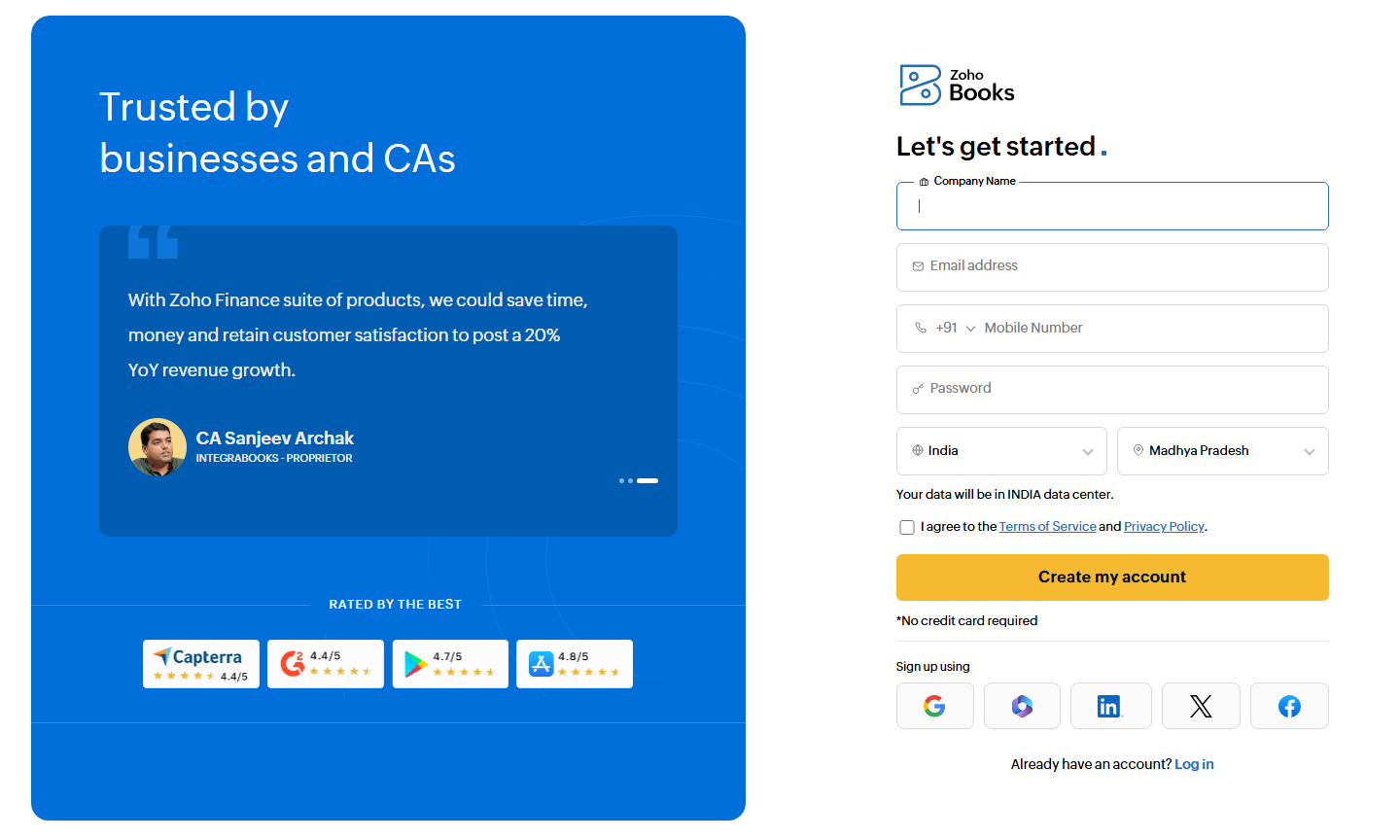
Step 4: Verify Your Email
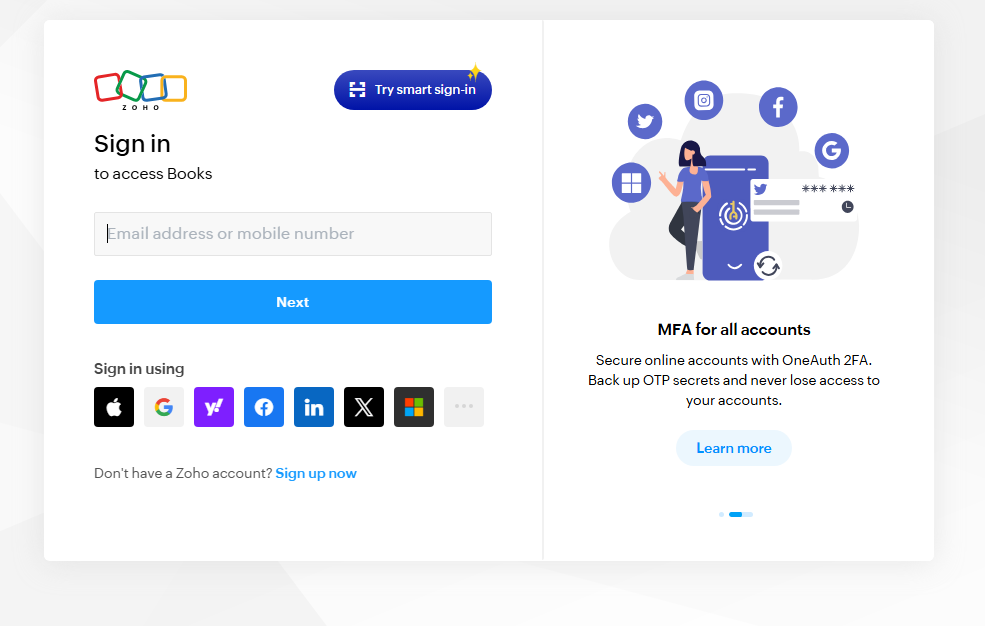
Step 5: Zoho Books Account Created
Your Zoho Books dashboard will open.
Step 6: From Settings to Invoice Creation
This guide walks users through the entire flow of an invoicing system, starting from Settings and ending with Invoice Creation. You can use this directly as a blog post or documentation page.
Go to Settings
The Settings section is where you configure your business details, taxes, templates, and system preferences before creating any transactions.
Steps:
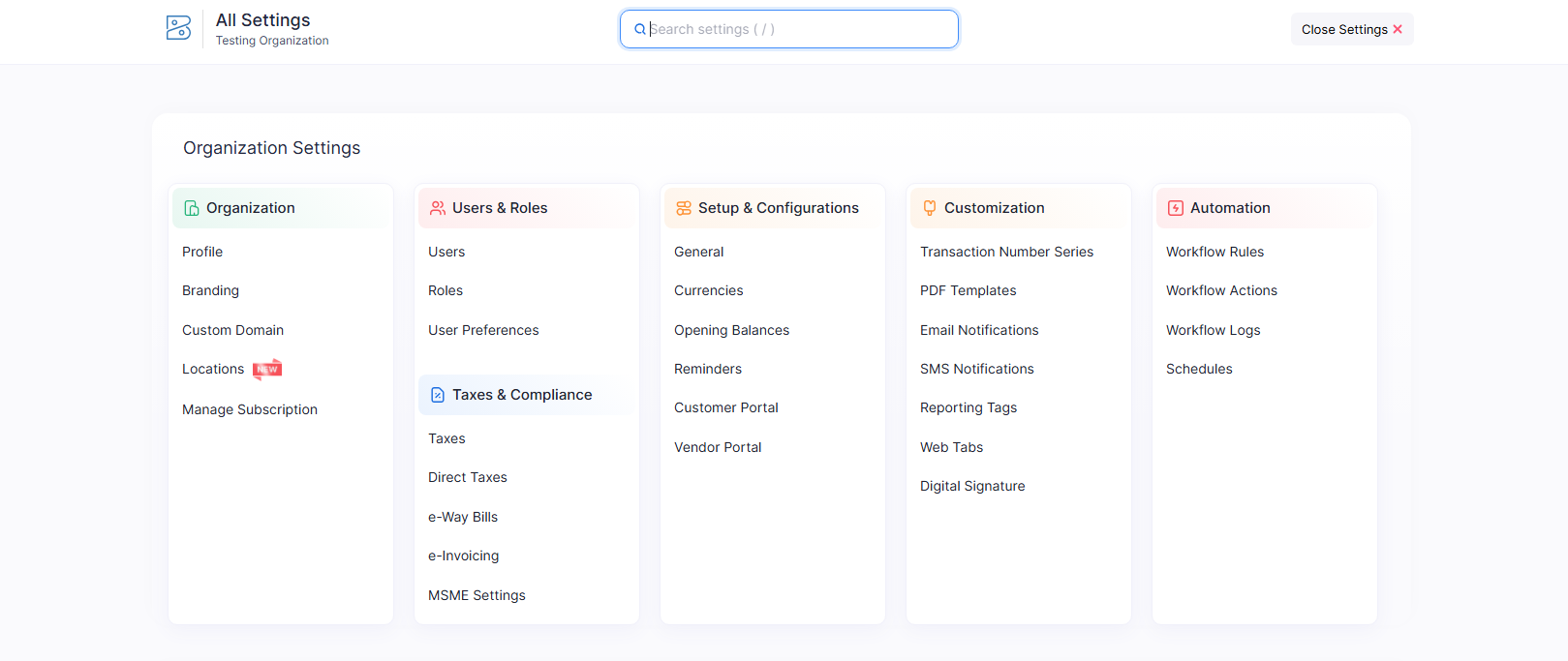
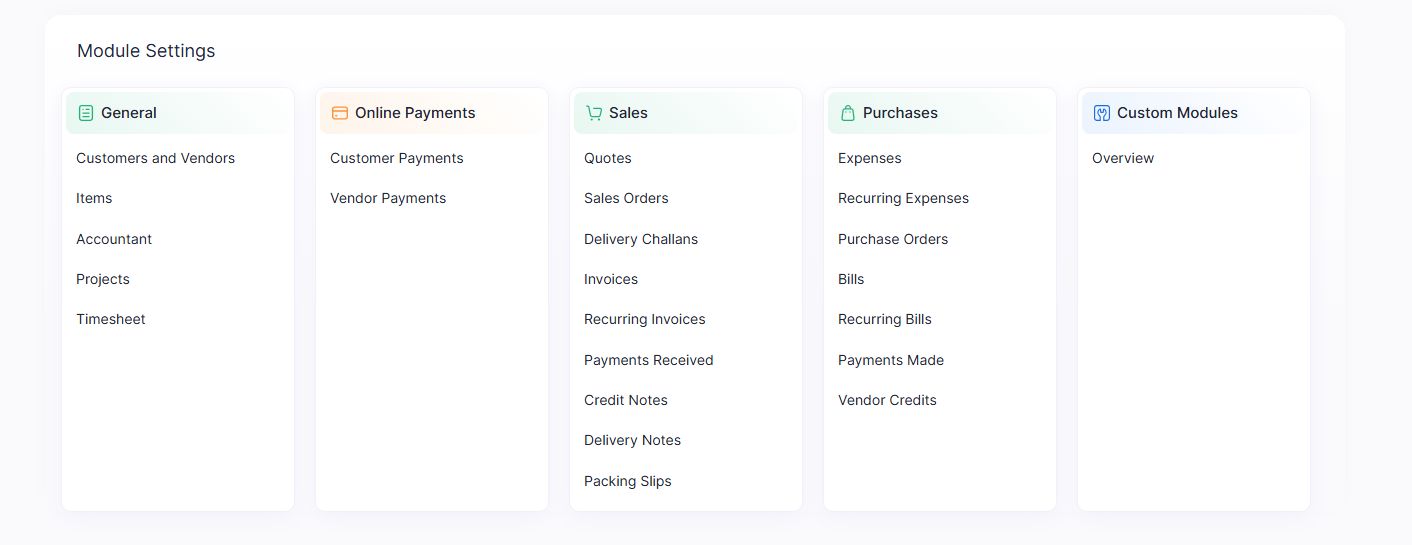
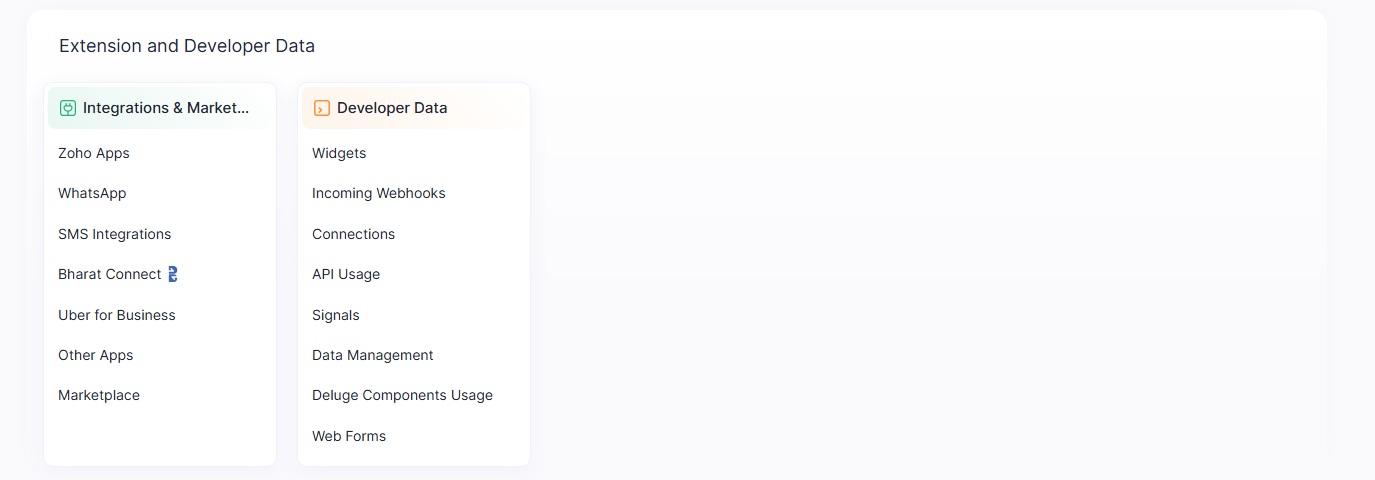
Organization Details Setup
Order details define how your invoices and orders behave across the system.
Steps:
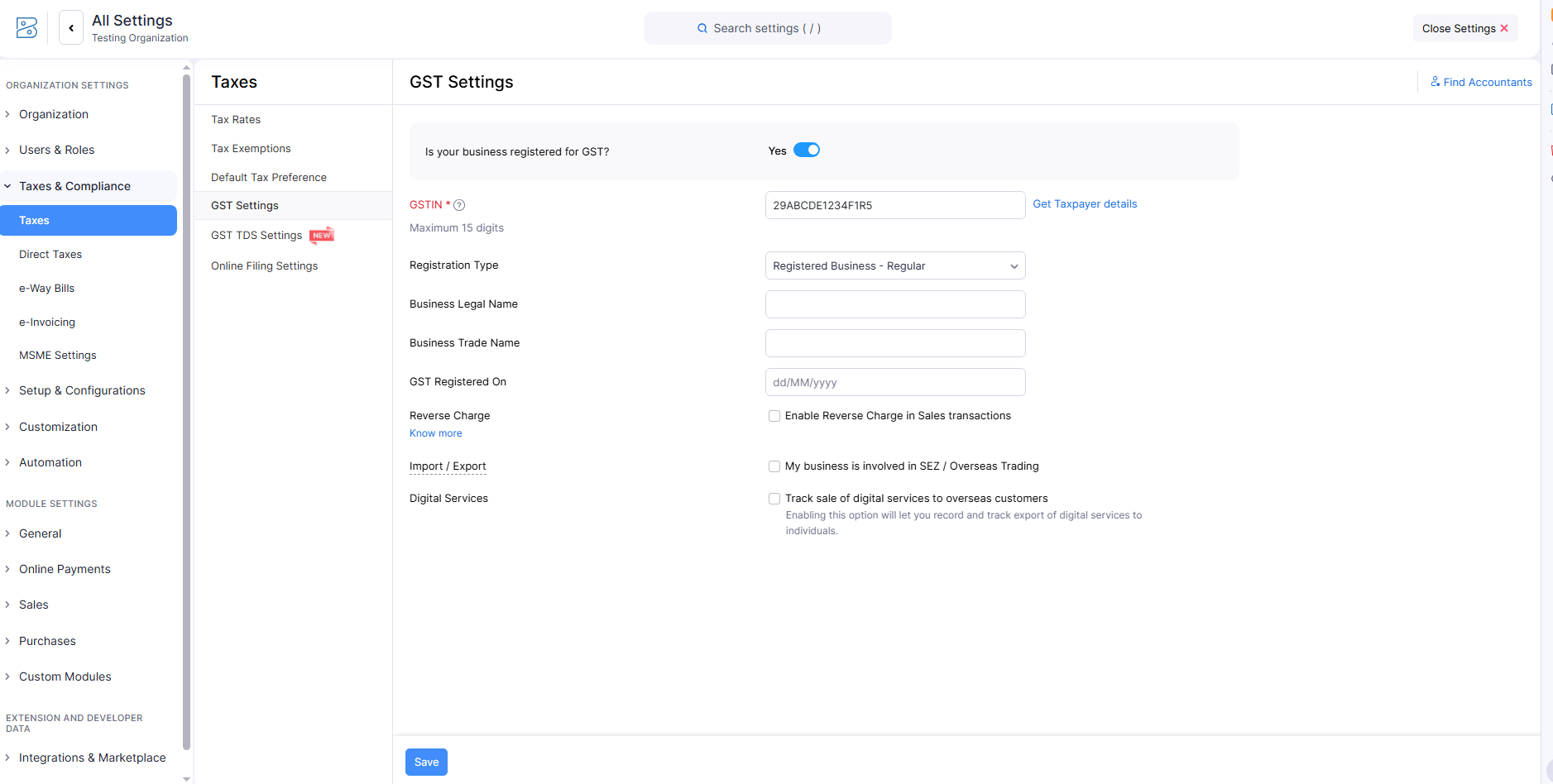
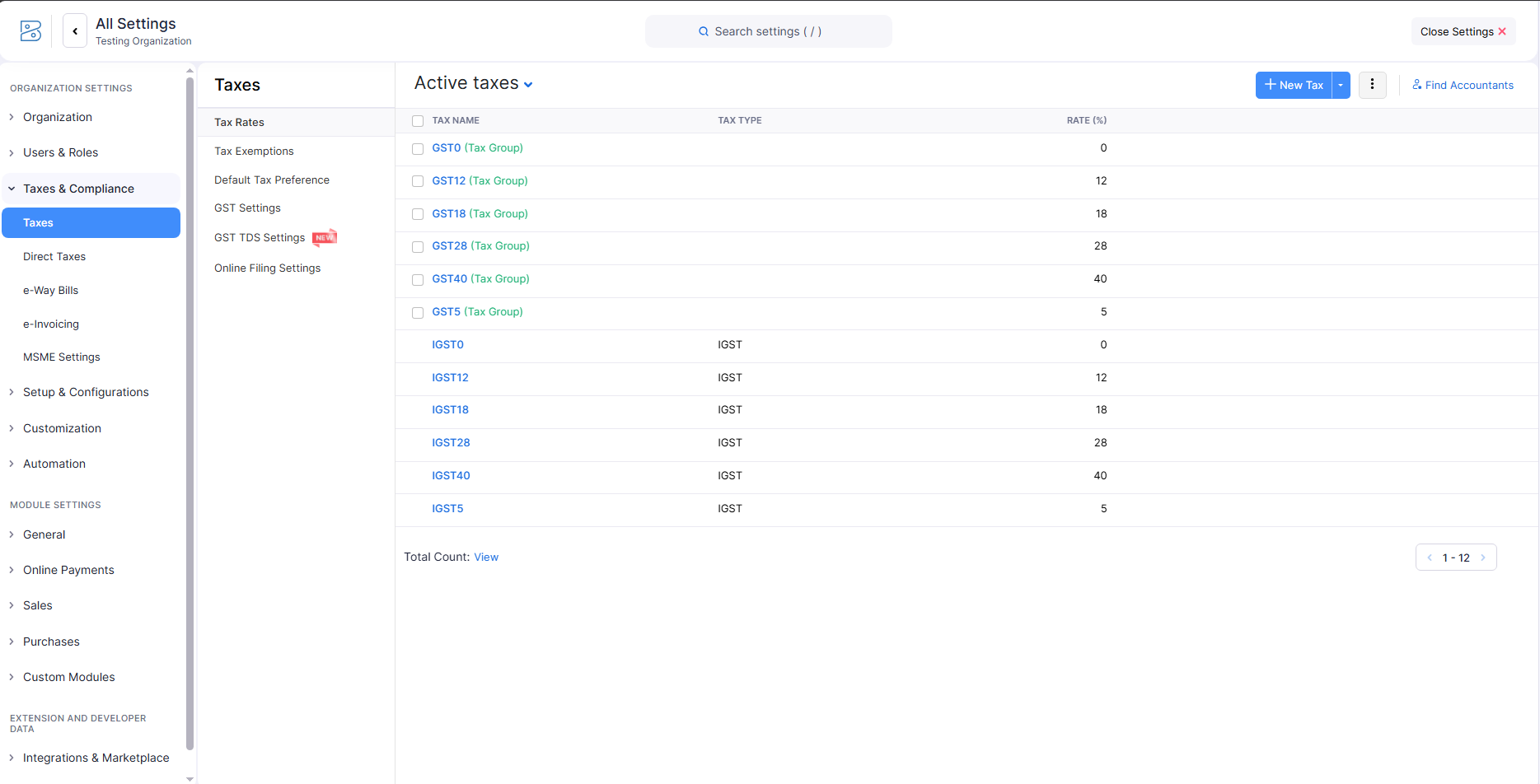
Tax Details Setup (GST Setup)
This section is critical for businesses registered under GST.
Steps:
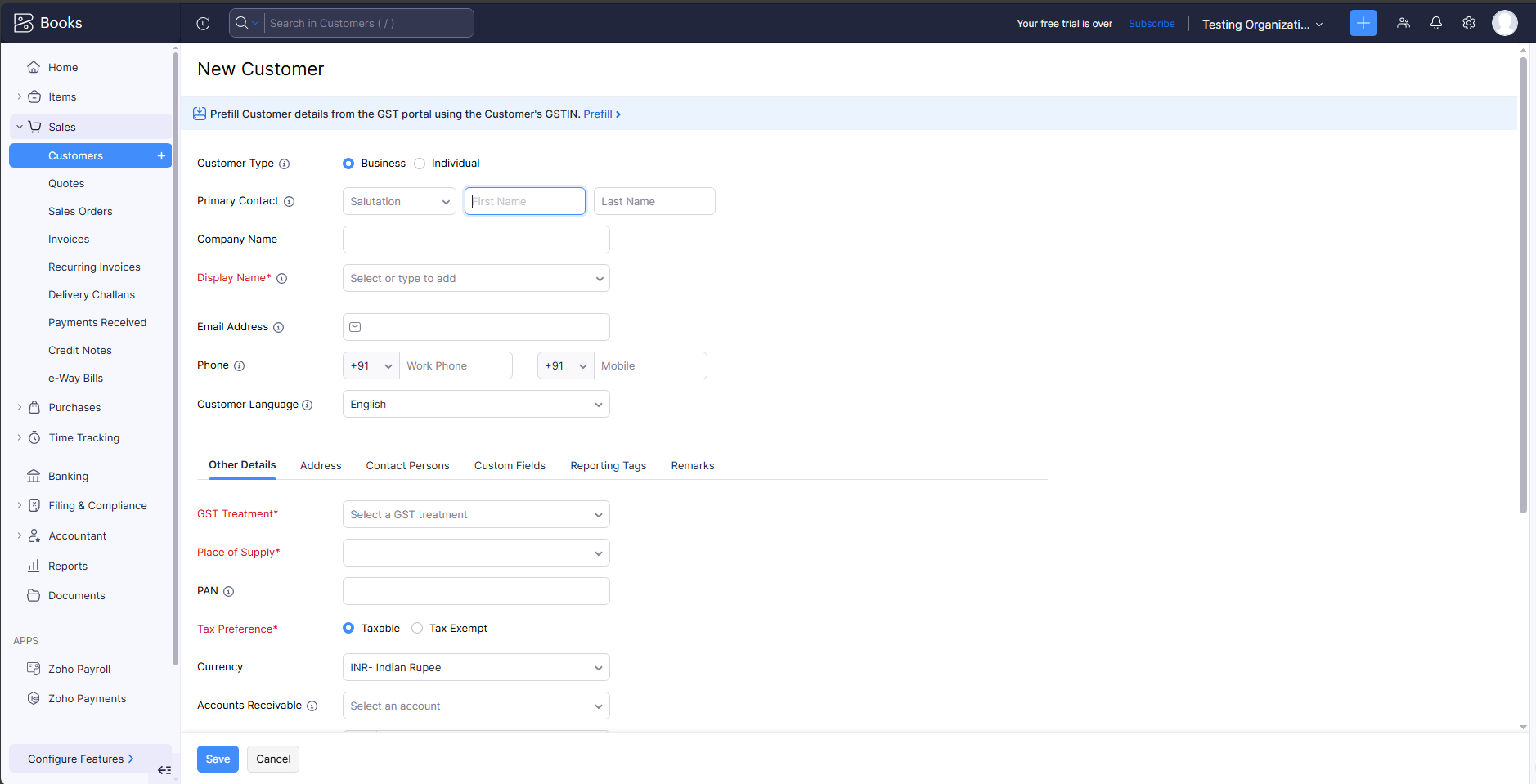
Create Customer using UI
Customers must be added before creating invoices.
Steps:
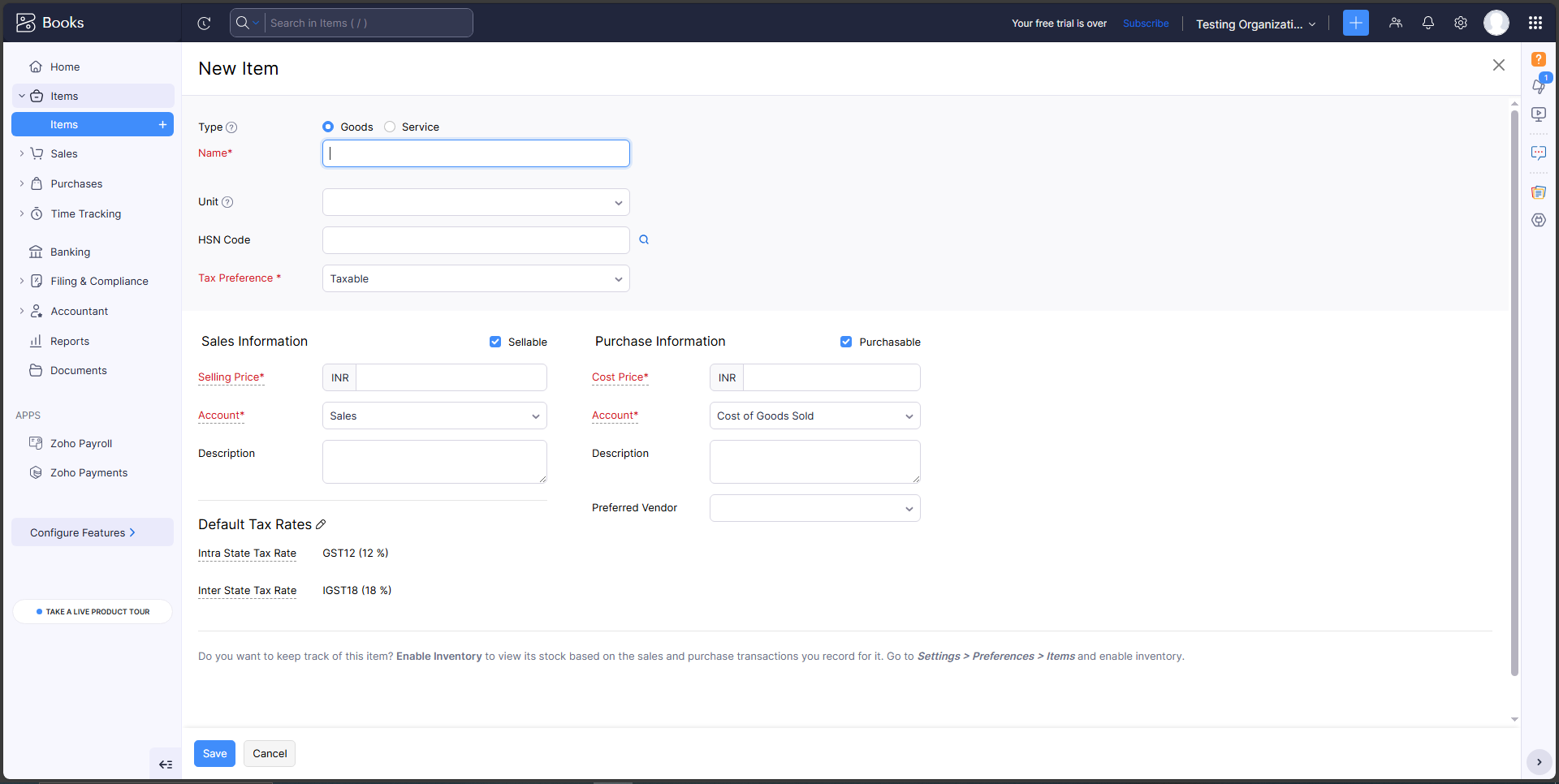
Create Item / Product using UI
Items or services are required to generate invoices.
Steps:
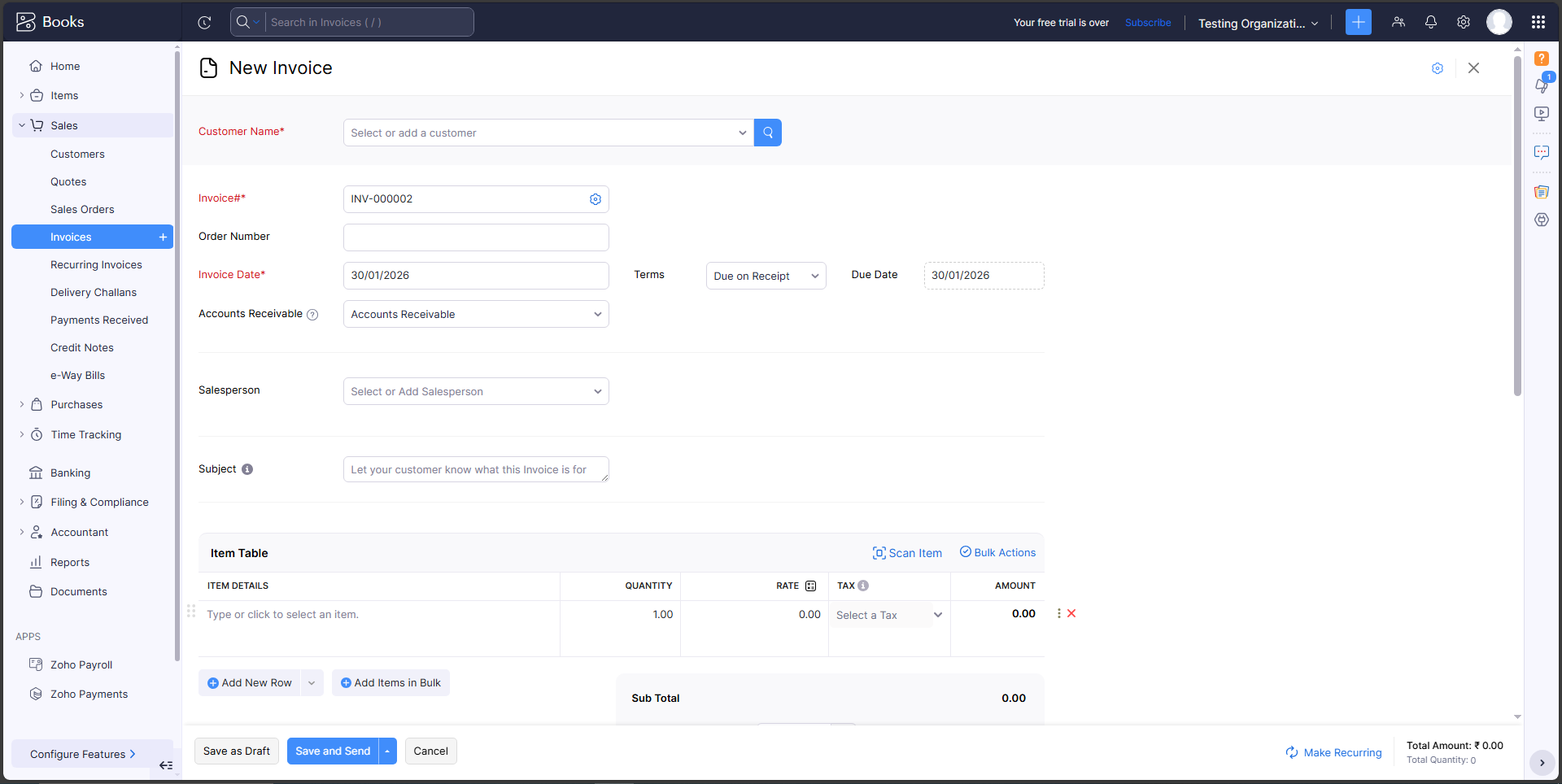
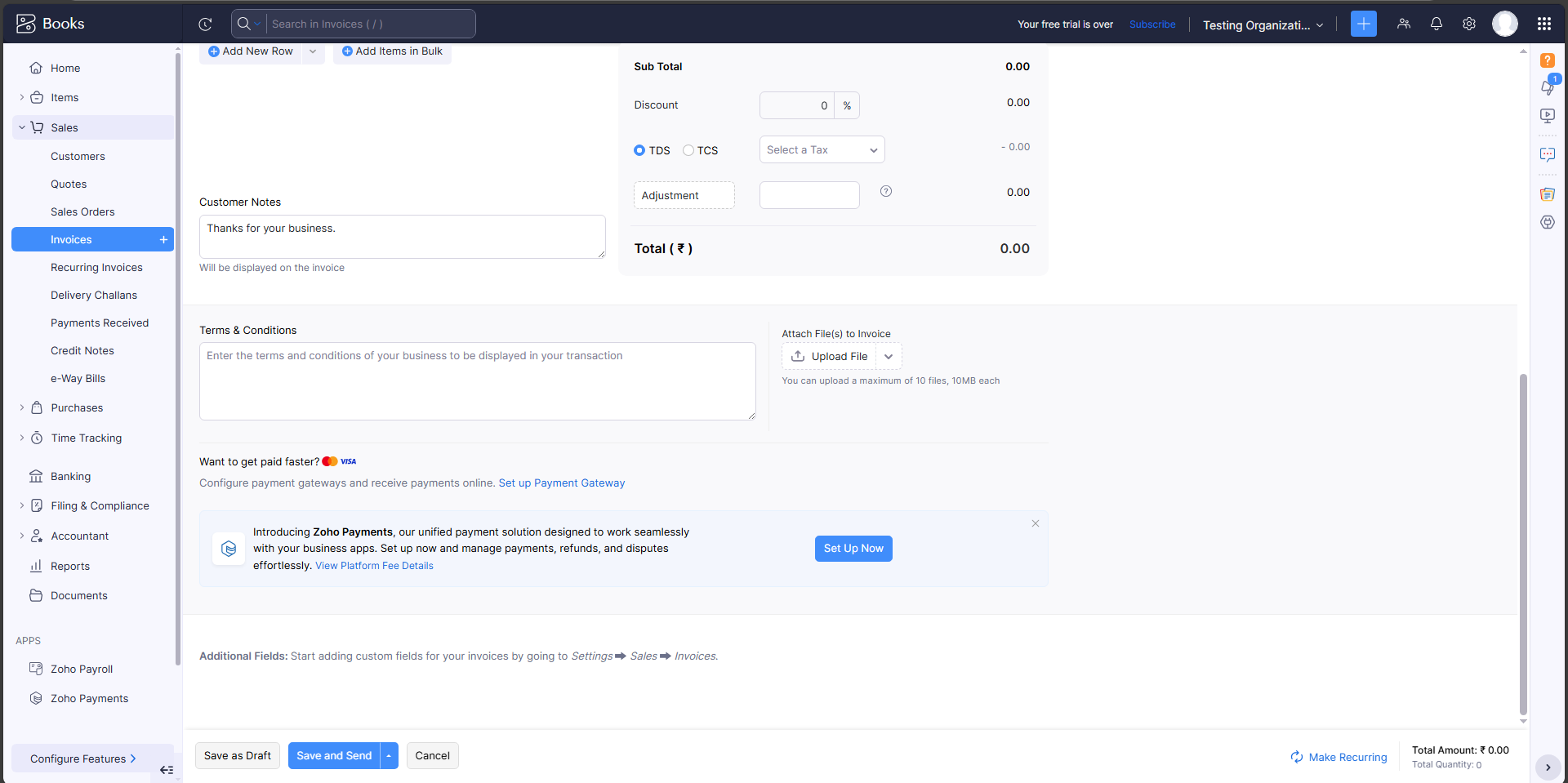
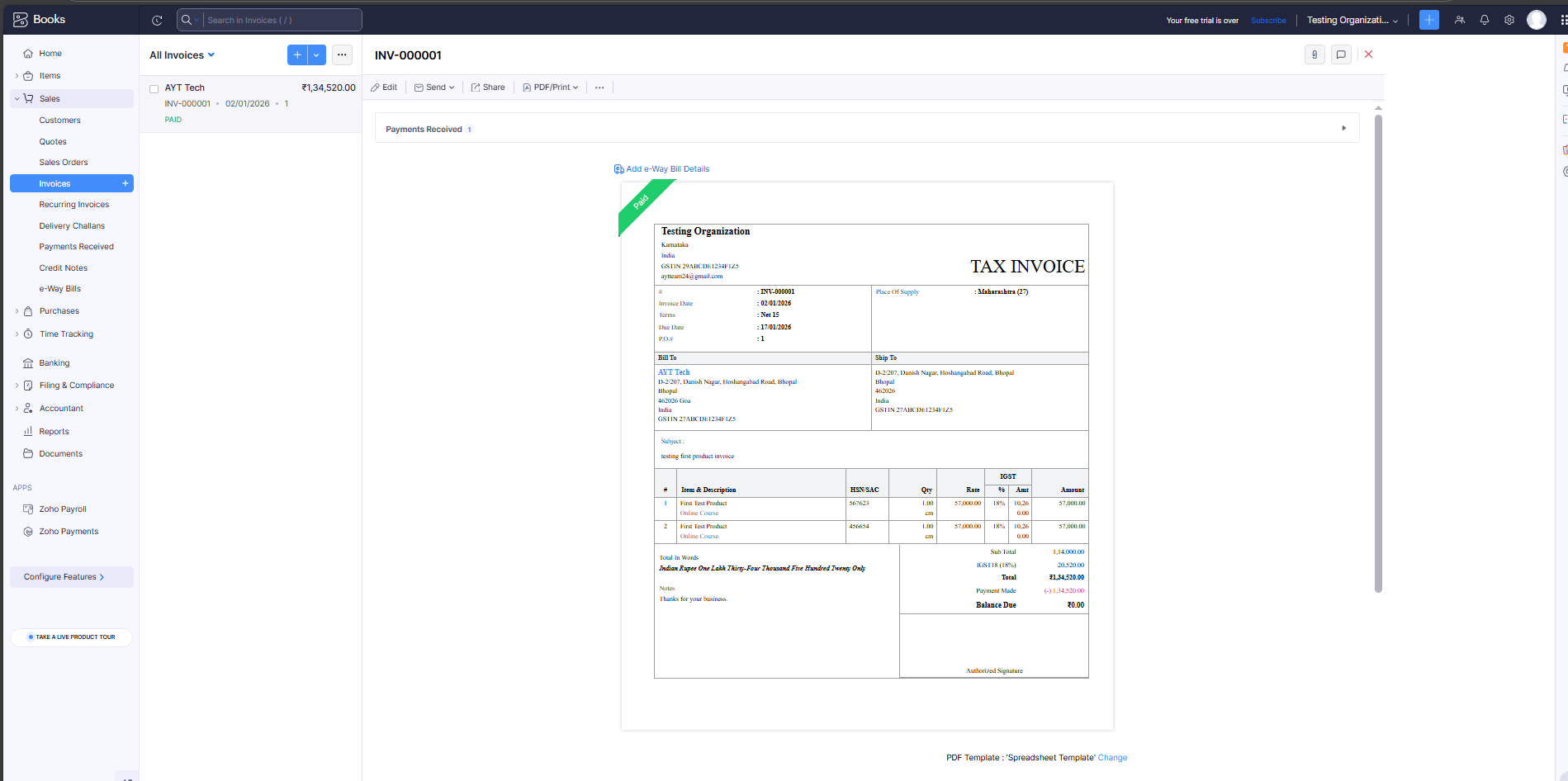
Create Invoice using UI
Once everything is set up, you can easily generate invoices for your customers.
Steps:
Download or Share Invoice using UI
After creating an invoice, you can download or share it with the customer using multiple options.
Options:
A Zoho Developer account is used to create APIs, build extensions, and integrate Zoho with other applications.
Step 1: Visit Zoho Developer Portal
Step 2: Sign In with Zoho Account
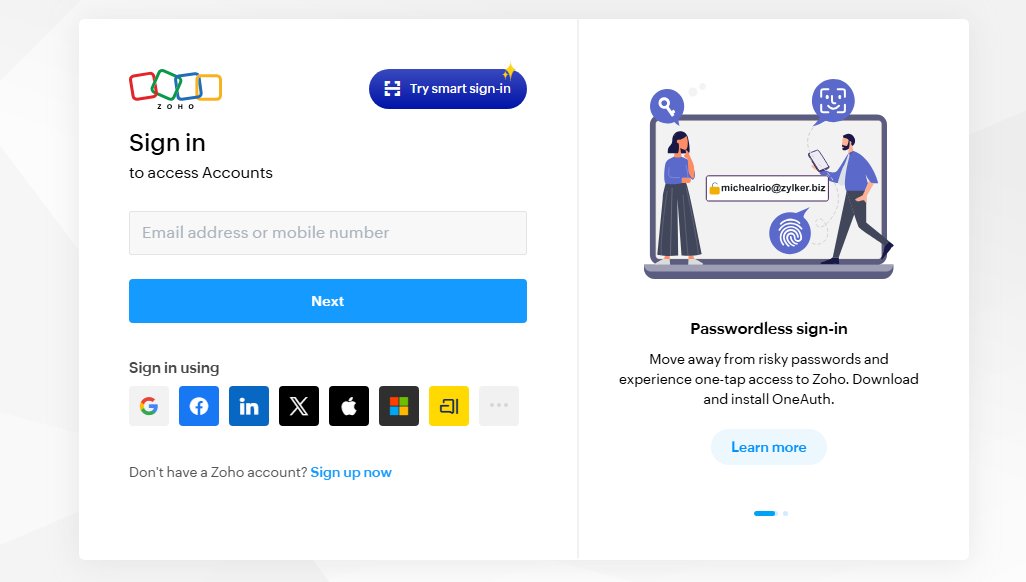
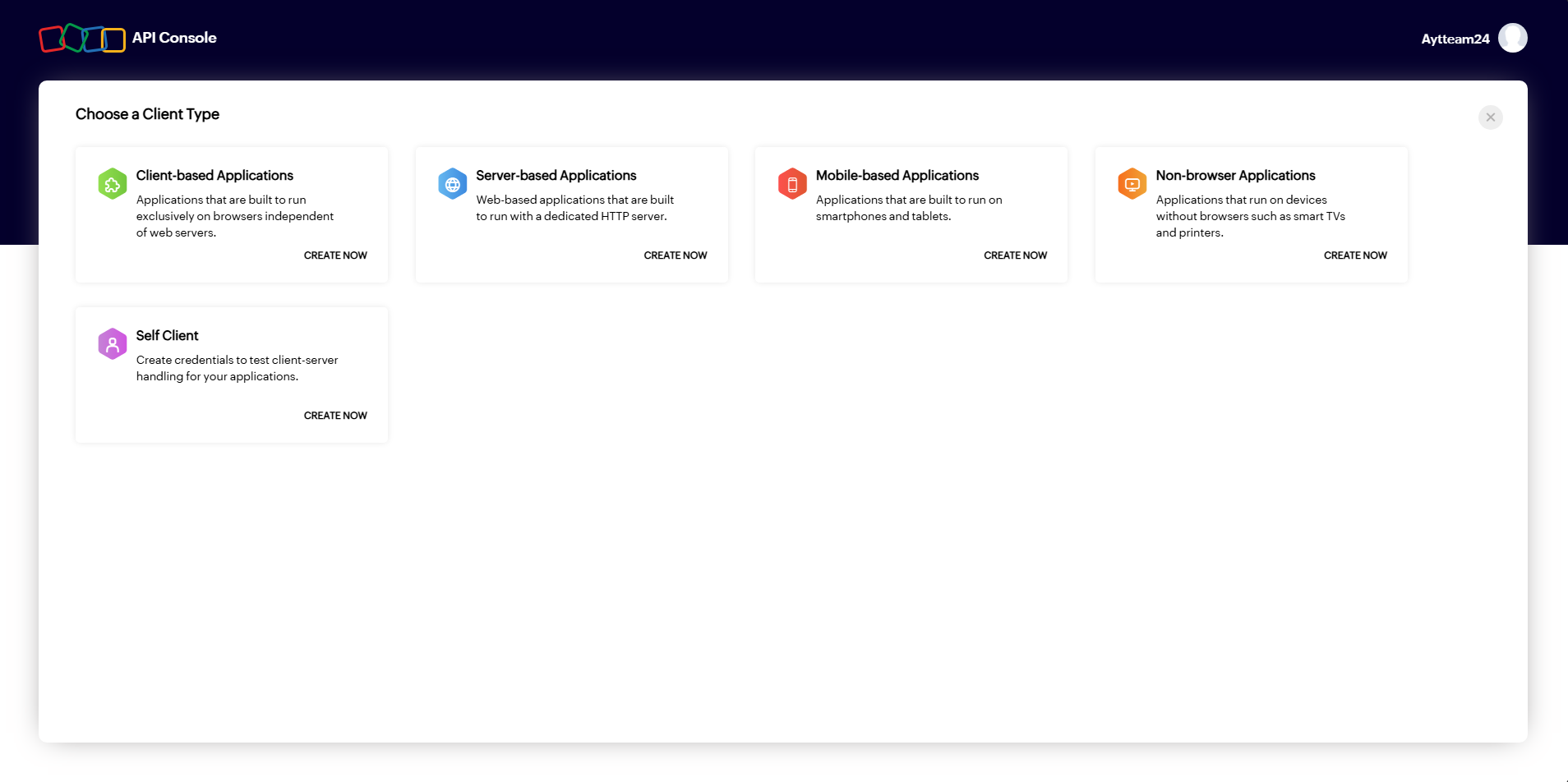
Step 3: Access Developer Console
Step 4: Create a New Client (App)
Step 5: Enter Client Details
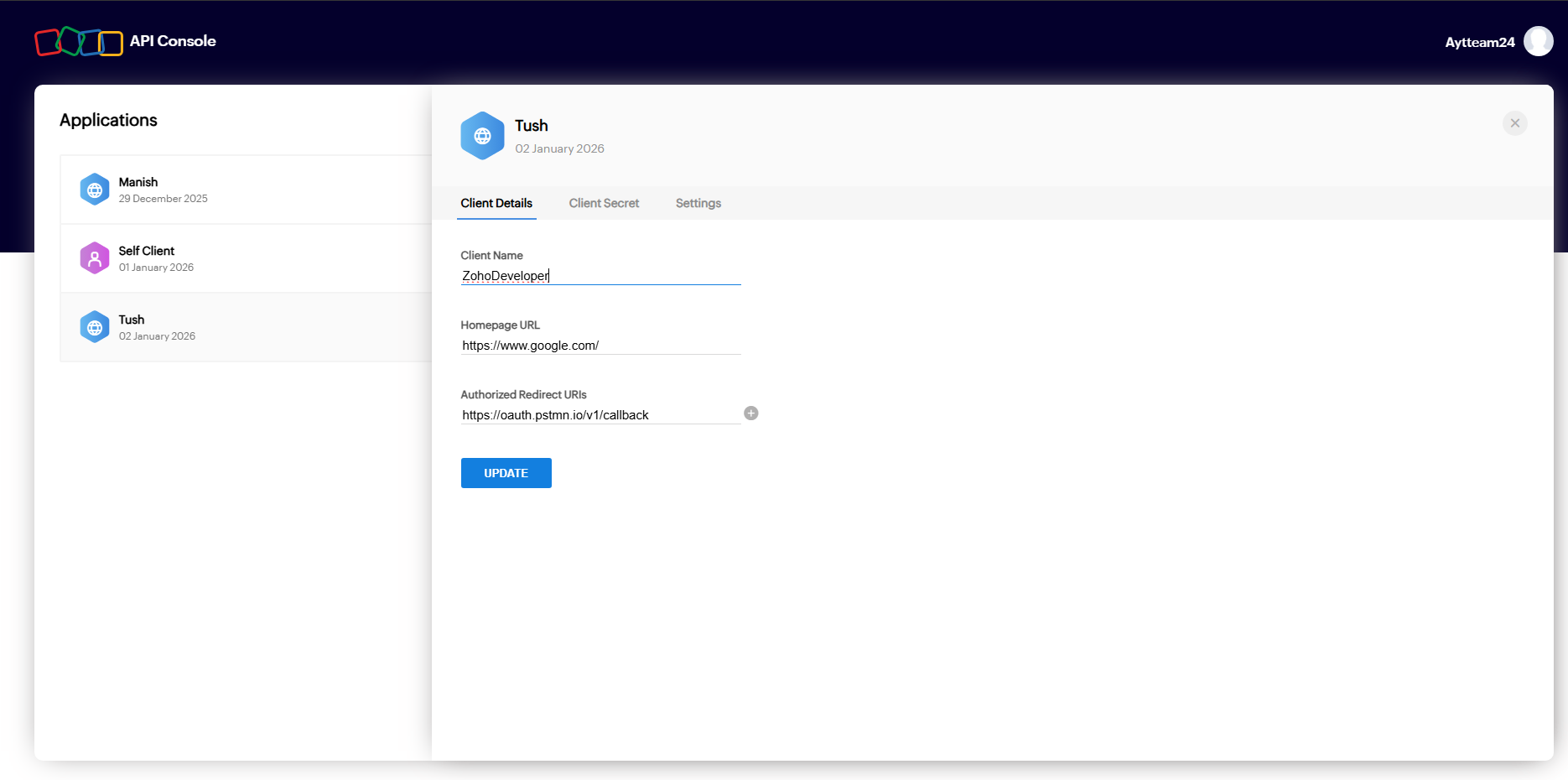
Step 6: Get Client ID and Client Secret

Step 7: Start Using Zoho APIs for Invoice Creation
Get Authorization Code
Zoho uses OAuth 2.0.
The first step is to get a
one-time authorization code
Authorization URL
https://accounts.zoho.in/oauth/v2/auth
Query Parameters
client_id=YOUR_CLIENT_ID
response_type=code
scope=ZohoBooks.fullaccess.all
redirect_uri=YOUR_REDIRECT_URI
access_type=offline
prompt=consent
url :
https://accounts.zoho.in/oauth/v2/auth?scope=ZohoBooks.fullaccess.all&client_id=After successful login and consent, Zoho will redirect to:
YOUR_REDIRECT_URI?code=AUTHORIZATION_CODE
Save this code — it is used only once.
Generate Access Token and Refresh Token
Now exchange the authorization code for tokens.
Token API
https://accounts.zoho.in/oauth/v2/tokenRequest (POST)
                           url -X POST "https://accounts.zoho.in/oauth/v2/token" \

                            -d "client_id=YOUR_CLIENT_ID" \

                            -d "client_secret=YOUR_CLIENT_SECRET" \

                            -d "grant_type=authorization_code" \

                            -d "code=AUTHORIZATION_CODE" \

                            -d "redirect_uri=YOUR_REDIRECT_URI"
Response
                         {

                                "access_token": "1000.xxxx",

                                "refresh_token": "1000.yyyy",

                                "expires_in": 3600

                            }
Store both tokens securely
Step 3: Refresh Access Token
Access tokens expire in 1 hour. Use the refresh token to generate a new one.
Refresh Token API
                                curl -X POST "https://accounts.zoho.in/oauth/v2/token" \

                                -d "client_id=YOUR_CLIENT_ID" \

                                -d "client_secret=YOUR_CLIENT_SECRET" \

                                -d "grant_type=refresh_token" \

                                -d "refresh_token=YOUR_REFRESH_TOKEN"
You'll receive a new access token in response.
Step 4: Get Organization ID
Every Zoho Books API call requires an organization_id.
API Endpoint
                            GET /organizations
                            curl -X GET "https://www.zohoapis.in/books/v3/organizations" \
                            -H "Authorization: Zoho-oauthtoken YOUR_ACCESS_TOKEN"
Response
                            {
                            "organizations": [
                                {
                                "organization_id": "123456789",
                                "name": "My Company"
                                }
                            ]
                            }
Step 5: Get Tax ID
If your invoice includes tax, retrieve available tax IDs.
API Endpoint
                            GET /settings/taxes

                            curl -X GET "https://www.zohoapis.in/books/v3/settings/taxes?organization_id=123456789" \

                            -H "Authorization: Zoho-oauthtoken YOUR_ACCESS_TOKEN"
Response
                            {

                            "taxes": [

                                {

                                "tax_id": "987654321",

                                "tax_name": "GST",

                            "tax_percentage": 18

                                }

                            ]

                            }
Step 6: Create Customer
Invoices must be associated with a customer.
API Endpoint
POST /contacts
Request
                            curl -X POST "https://www.zohoapis.in/books/v3/contacts?organization_id=123456789" \


                            -H "Authorization: Zoho-oauthtoken YOUR_ACCESS_TOKEN" \

                            -H "Content-Type: application/json" \

                            -d '{

                            "contact_name": "Daga Raj",

                            "company_name": "AON",

                            "email": "dagaraj@gmail.com"

                            }'
Response
                                {

                                     "contact": {

                                  "contact_id": "1122334455"

                                }

                                }
Step 7: Create Items
Items represent products or services added to invoices.
API Endpoint
POST /items
Request
                                    curl -X POST "https://www.zohoapis.in/books/v3/items?organization_id=123456789" \

                                    -H "Authorization: Zoho-oauthtoken YOUR_ACCESS_TOKEN" \

                                    -H "Content-Type: application/json" \

                                    -d '{

                                    "name": "Web Development Service",

                                    "rate": 500,

                                    "tax_id": "987654321"

                                    }'
Response
                               {
                                "item": {
                                    "item_id": "5566778899"
                                 }
                                }
Step 8: Create Invoice
Now you have everything needed to create an invoice
API Endpoint
POST /invoices
Request
                            curl -X POST "https://www.zohoapis.in/books/v3/invoices?organization_id=123456789" \

                            -H "Authorization: Zoho-oauthtoken YOUR_ACCESS_TOKEN" \

                            -H "Content-Type: application/json" \

                            -d '{

                            "customer_id": "1122334455",

                            "line_items": [

                                {

                                "item_id": "5566778899",

                                "quantity": 2,

                                "rate": 500

                                }

                            ],

                            "notes": "Thank you for your business!"

                            }'
Response
                            {

                            "invoice": {

                                "invoice_id": "9988776655",

                                "invoice_number": "INV-00001",

                                "status": "draft"

                            }

                            }
Invoice successfully created!
Correct API Execution Order (Summary)
Zoho Books API - Rules & Regulations
When working with the Zoho Books API, especially for creating invoices, it is critical to follow Zoho’s technical rules, country-specific regulations, and accounting compliance requ
OAuth & Authentication Rules
Mandatory Rules
You must use valid scopes such as:
ZohoBooks.fullaccess.all
Insufficient scopes will result in:
Unauthorized / Permission Denied
Data Center & Country Rules
Zoho Books is region-locked.
API Domain Must Match Organization Country
| Country | API Domain |
|---|---|
| USA / Global | zohoapis.com |
| India | zohoapis.in |
| EU | zohoapis.eu |
| Australia | zohoapis.com.au |
| Japan | zohoapis.jp |
Using the wrong domain = API failure
Tokens are not cross-region compatible
Organization Rules
Organization ID Rules
Validation API
GET /organizations
Customer (Contact) Rules
Mandatory Fields
Country-Specific Rules
| Country | Special Requirements |
|---|---|
| India | GST Treatment |
| UAE | TRN |
| EU | VAT Number |
| USA | Sales Tax settings |
Invoices cannot be created without a valid customer.
Item Rules
Mandatory Item Rules
Tax Rules for Items
tax_idTax Rules (Country-Wise)
Taxes are strictly regulated by country laws.
India (GST)
Mandatory Fields
Tax Types
USA (Sales Tax)
Missing or incorrect tax fields = invoice rejection.
Invoice Creation Rules
Mandatory Invoice Fields
Status Rules
Currency Rules
Validation API
Error Handling Rules
| Error Code | Meaning |
|---|---|
| 401 | Invalid or expired token |
| 403 | Permission denied |
| 404 | Resource not found |
| 429 | Rate limit exceeded |
| 500 | Server error |
Invoice Numbering Rules
Recommended API Execution Order
Connect with us.